Uhelp – SaaS Helpdesk Support Ticket System
Dashboard
When a subscriber registers, they are redirected to their assigned subdomain. Each subscriber has a separate homepage and an independent workspace environment.
For Superadmins and their associated agents, you can either click Login on the main homepage or directly access the Admin Dashboard at https://yoursite.com/admin/. Log in using the credentials created during the installation process.
For Subscribers (also referred to as Admins), you can click the Dashboard button on your subdomain homepage or directly access your dashboard at https://subdomain.yoursite.com/admin. Log in using the credentials provided during the registration process.
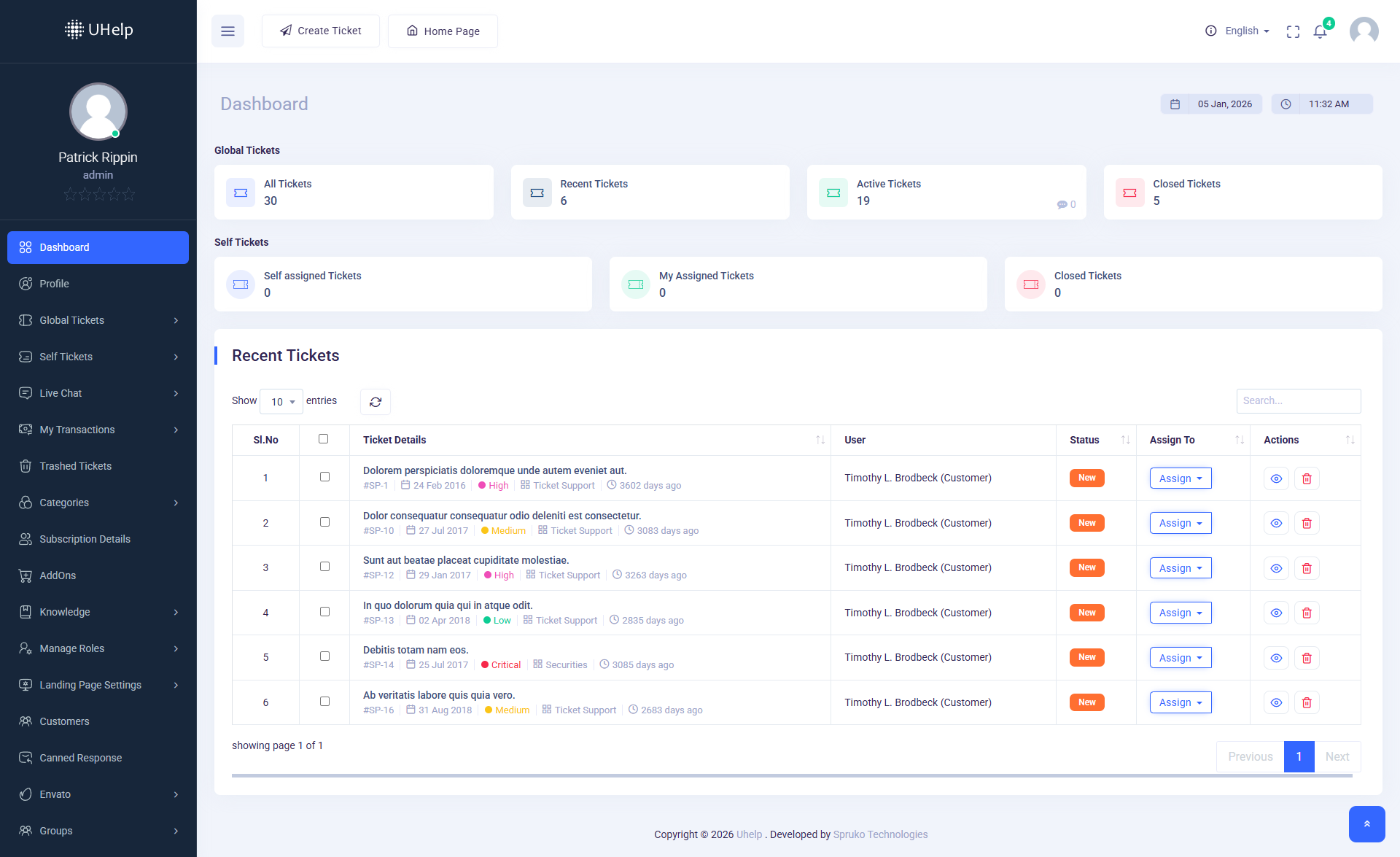
- Once you have successfully logged in to the "Admin Dashboard", note that the "Super Admin" will not see any tickets. For "Subscribers", their dashboard will display two sections: the "Global Tickets" section with five "Ticket Navigation Blocks", and the "Self Tickets" section with four "Ticket Navigation Blocks". These blocks will navigate you to the respective tickets.
- The "Recent Tickets" table displays only new tickets. And also, you will find a "Delete" button. Using that delete button, you can delete those tickets.
- A manual refresh button is placed beside the delete button to refresh the "Tickets Summary" table manually. And a search bar to search tickets by typing manually and select 2 dropdown with numbers to see the total ticket count.
- The best part about this dashboard is that you can monitor your "Time and Date" according to your Time Zone and Country.
- In the top left corner of the "Header Section", you’ll see "Create Ticket" and "Home Page" buttons. By clicking on the "Create Ticket" button, you can create a "Guest Ticket" for your "Customer", and those newly created tickets will be in the "Recent Tickets" until they are self-assigned or assigned to another user or replied to.
- And by clicking on "Home Page", you’ll be navigated to the Landing Page of the application, which is the main site (URL), e.g.,https://yoursite.com/.
- In the top right corner of the "Header Section", you’ll be getting a "Switch Language" button, "Full Screen" button, "Notification Bell Icon," and "Profile Avatar."