



Introduction
Vyzor – Inertia, Vue, and Laravel Premium Admin & Dashboard Template for All Your Web Projects
Vyzor – Inertia, Vue, and Laravel Premium Admin & Dashboard Template
that combines modern and minimal design with full flexibility
and responsiveness. It’s crafted using
Vue , Inertia.js , Laravel , CSS3 ,
and Bootstrap offering seamless customization with
SASS
integration. Whether you’re building a web application, admin dashboard, or
project management platform, this template ensures your site stands out with
ease.
Support and Updates:
When you purchase Vyzor, you gain access to free future updates to ensure your template remains up-to-date. Plus, our support team is always ready to assist with any questions.
What Do You Get with the Vyzor:
Vyzor provides all necessary PHP,Vue, CSS, SCSS, Js files, along with detailed Documentation to help you easily customize and implement the template.
Vyzor Compatibility with Popular Browsers:
Vyzor is fully compatible with major browsers, ensuring a seamless user experience across Chrome, Firefox, Safari, Edge, and Opera.
Getting Start Guide
Setting Up The Local Environment & Workspace
This comprehensive guide provides step-by-step instructions on how to set up your development environment for Vite using the Vue,Laravel tool. It covers everything from the necessary prerequisites to installing the tool, creating an initial workspace, and setting up a starter app. You'll also learn how to run the app locally to test and verify your setup. By following this guide, you can ensure that your development environment is properly configured for Vite and Vue, and you can get started with your project confidently and efficiently. Whether you're a beginner or an experienced developer, this guide is an essential resource for anyone looking to work with Vite and Vue.
To get started with a Vue application, there are some prerequisites that you need to have in place.
Prerequisites
For installation and setup all prerequisites, you should be familiar with the following:- Xampp
- Composer
- Vue
- vite
- Bootstrap
- Javascript
To install vite on your local System, you need the following:
Node.JS
vite requires a current, active LTS (long term support) or maintenance LTS (long term support) version of Node.js.
Download latest version of node.js from nodejs.org.Install Node.js using downloaded file.
To check your node version, run node -v in a terminal/console window (cmd)
Npm package Manager
The vite and Vue applications depend on npm packages for many
features and functions.
To download and install npm packages, you need an npm package manager.
This guide uses the npm client command line interface, which is installed
with Node.js by default. To check that you have the npm client installed,run
npm -v in a terminal/console window (cmd)
For better understanding Vue we suggest you once go through official
documentation of Vue from Vue
Documentation and vite for Vite
documentation
Installation Process
Installation Process of Composer
In order to run Laravel we need to install composer by the following steps
Steps to Download & Installation of Composer
Step1: Please visit the Official Web Site of the Composer www.getcomposer.org
Step2: Click on the Download option
Step3: Click on the Composer-Setup.exe you are done with download
Step4: Now Right click on the Composer-Setup.exe file and select Run as administrator click on Yes
Step5: You'll be getting two options click as per your choice
Step6: I choose Recommended option here and if your developer you can check the box of the Developer Mode
Step7: And click on the Next button please make sure of installation path and then click Next
Step8: You'll be asked to enter proxy url please skip the step and click on the Next button
Step9: Please make sure with the PHP Version it should not be less than 8.2v, here we used 8.2.12 Version and then click on the next button
Step10: To confirm that Composer is installed in your system then type Composer in command prompt (if you are using XAMPP then go to C:\xampp\htdocs location and type composer)
How to Run the Vyzor Template:
If you have installed XAMPP on your machine then please follow the below steps
Step:1 Quick view of Installations
1. Download and Install the Composer from official site https://getcomposer.org/
2. Install Laravel by using Composer as mentioned in the installation process above.
Step:2 Run project
1. Extract the zip folder of the laravel project in the path: EX: C:\xampp\htdocs\ that you have received after purchase.
2. Once the extraction is completed for accessing the laravel project, open command prompt or terminal and set your project root path: Example: C:\xampp\htdocs\
3. Open the terminal and set the root path of your template and then run the following command: "composer install" only if it is required to update your "vendor" directory.
4. Now run the below commands in the terminal to get the output of the project. To get the node_modules install.
To get the node_modules install.
code
npm install To get the build assets of the project.
code
npm run build And run the command line:
code
npm run dev code
php artisan serve Laravel development server started: http://127.0.0.1:8000, now type
the url in the browser to access the project.
Installation Video
InertiaJS
Inertia Setup Guidance
Inertia.js acts as a bridge between your Laravel backend and Vue frontend, allowing you to build modern SPAs without the complexity of managing APIs or client-side routing manually.
1.Server-side Setup:
The first step when installing Inertia is to configure your server-side framework. Inertia maintains an official server-side adapter for Laravel.
The setup includes Laravel’s powerful routing system and controllers, with Inertia’s Laravel adapter responsible for returning views as Vue components instead of traditional Blade templates. This allows developers to write backend logic in Laravel as usual, while seamlessly passing data to Vue components via Inertia.
First, install the Inertia server-side adapter using the Composer package manager.
code
composer require inertiajs/inertia-laravel Next, set up the root Blade template that will be used when a user first visits your application. This template is responsible for loading your CSS and JavaScript assets, and it must include a root where your JavaScript frontend (Vue via Inertia) will be mounted.
<!DOCTYPE html>
<html lang="en">

<head>
    <meta charset="UTF-8">
    <meta name="viewport" content="width=device-width, initial-scale=1.0">
    <title inertia>Vyzor - Inertia + Vue & Laravel Admin & Dashboard Template
      <!-- Favicon -->
    <link rel="icon" href="{{asset('/images/brand-logos/favicon.ico')}}" type="image/x-icon">
    <!-- ICONS CSS -->
    <link href="{{asset('/icon-fonts/icons.css')}}" rel="stylesheet">


    @vite(['resources/js/app.js'])
    @inertiaHead
</head>

<body>
    @inertia
</body>
</html>
2.Client-side Setup:
Once you have your server-side framework configured, you then need to setup your client-side framework. Inertia currently provides support for Vue, React, and Svelte..
First, install the Inertia client-side adapter corresponding to your framework of choice.
code
npm install @inertiajs/vue3
Initialize the Inertia app
Next, update your main JavaScript file to boot your Inertia app. To accomplish this, we'll initialize the client-side framework with the base Inertia component.
code
// app.js

import './bootstrap';
import { createApp, h } from 'vue';
import { createInertiaApp } from '@inertiajs/vue3';
import maindashboard from '@/layouts/maindashboard.vue';
import plugins from './plugins';
import '../css/app.scss'
import '../css/scss/switcher.scss'
import '@mdi/font/css/materialdesignicons.css';
createInertiaApp({
    resolve: name => {
        const pages = import.meta.glob('./Pages/**/*.vue', { eager: true });
        const page = pages[`./Pages/${name}.vue`].default; // 👈 Get the actual component

        // 👇 Assign DefaultLayout if no layout is defined
        if (!page.layout) {
            page.layout = maindashboard;
        }

        return page;
    },
    setup({ el, App, props, plugin }) {
        createApp({ render: () => h(App, props) })
            .use(plugin)
            .use(plugins)
            .mount(el);
    },
});
Vyzor - File Generate
How to Create a New Page
To create a new page in a Laravel + Inertia.js + Vue application, start by
adding a new Vue component inside the
resources/js/Pages directory—for example,
Newpage.vue.
This file will contain the structure and content of your new page using vue.
Next, define a corresponding route in Laravel’s routes/web.php file using
the
Inertia::render() method, which connects the URL path to the Vue
component.
Once the route is set, visiting that URL in the browser will render your new
Vue page. Optionally, you can integrate the new page into your navigation
menu
using the Inertia Link component and wrap it in a layout component for a
consistent UI.
Note:
If your are using "npm install", You should need to delete the "package-lock.json file" from project root.
To install the peer Depencies
In general, the npm i command is used to install all dependencies or devDependencies from a package. However, sometimes you may encounter errors while installing certain dependencies. In such cases, the --force argument can be used to force npm to install those dependencies.
Using the --force argument can be helpful when you need to install a specific dependency that is causing issues during installation. However, it should be used with caution, as it can potentially cause conflicts with other dependencies or lead to unexpected behavior. It's always a good idea to thoroughly test your application after using the --force argument to ensure that everything is working as expected.
code
npm install --forceSkipping the installation of peer dependencies can sometimes lead to issues with the functionality or compatibility of the package. To ensure that your package functions correctly, it's important to manually install any missing peer dependencies using the npm install command. When installing peer dependencies, you should also be aware of the potential for conflicts with other packages or dependencies. It's a good idea to carefully review the peer dependencies required by each package and ensure that they are compatible with other packages in your project. By taking these steps, you can avoid potential issues and ensure that your packages are installed and functioning correctly.
code
npm install--legacy-peer-depsWe have to use only one file example: (for yarn yarn-lock) & (for npm package-lock.json) file
For Build your Template
Build your application for host on server using below command:
code
npm run build
"Similarly, the starter kit can be installed as well."
Folder Structure
StaterKit Guide
Introduction to the Vyzor Template Starter Kit:
The Vyzor template starter kit is a resource that helps developers kickstart their Vyzor web development projects by providing a preconfigured and ready-to-use template. It aims to simplify the initial setup and provide a foundation for building Inertia + Vue & Laravel-based websites or applications.
Purpose of the Vyzor Template Starter Kit:
The purpose of the Vyzor template starter kit is to save developers time and effort by offering a set of prebuilt files and configurations commonly used in Vyzor projects. Instead of starting from scratch, developers can leverage the starter kit to quickly set up a project structure that adheres to best practices and industry standards.
Benefits of Using the Vyzor Template Starter Kit:
The starter kit eliminates the need to set up the basic project structure
manually. It provides a well-organized file and folder structure, including
commonly used directories for separating code, templates, assets, and
configuration files. This allows developers to focus more on implementing
business logic rather than spending time on initial setup.
Before using the Vyzor template starter kit, developers should have a basic
understanding of Inertia + Vue & Laravel and web development concepts.
Additionally, they should have a web server environment Inertia + Vue &
Laravel installed on their local machines or a hosting server.
Familiarity
with Vue, CSS, and JavaScript is also beneficial for frontend development
aspects.
Starterkit Overview
You can use the Starterkit if you are creating a new project. It will be time-consuming to use the full admin version for a new project as Vyzor have more than 180 pages.
We have provided all the pre-build layouts like Sidemenu, Header, Footer and Scripts etc in the Starterkit.
For further information or support regarding the template, please contact us using the provided link:https://support.spruko.com/
- Take a look at the folder structure of the "Starterkit."
- Integration of your customized .vue pages becomes easy when using the "Starterkit."
- The "Starterkit" provides all the layout components and related assets.
- To explore the contents of the "Starterkit," unzip the project folder received after purchase. Navigate to the following paths:
- Example: resources/js/layouts - This folder contains files such as authlayout.jsx, landingpage.jsx ,etc.
- Example: resources/js/Pages/new folder create - Add your vue pages here if you have more.
Main Layout
Basic Layout Structure
Main Layout structure of the Vyzor template
.Root:resources\js\layouts\maindashboard.vue
Vue
<script setup>
import { ref, computed, onMounted, onBeforeUnmount } from "vue";
import { switcherStore } from "../../stores/switcher";
import Header from "../components/header/header.vue";
import Sidebar from "../components/sidebar/sidebar.vue";
import Footer from "../components/footer/footer.vue";
import Switcher from "../components/switcher/switcher.vue";
import BackToTop from "../components/backtotop/backtotop.vue";

// Store
const switcher = switcherStore()

// Computed class based on page style
const customClass = computed(() => {
  return switcher.pageStyles === "flat" ? "main-body-container" : "";
})

// Reference for the scroll progress bar
const progressRef = ref(null) // no need for the type, Vue will infer it

// Scroll handler for updating progress
const handleScroll = () => {
  const scrollTop = document.documentElement.scrollTop || document.body.scrollTop
  const scrollHeight = document.documentElement.scrollHeight - document.documentElement.clientHeight

  if (scrollHeight === 0) {
    return
  }

  const scrollPercent = (scrollTop / scrollHeight) * 100

  if (progressRef.value) {
    progressRef.value.style.width = `${scrollPercent}%`
  }
}

// Lifecycle hooks
onMounted(() => {
  window.addEventListener("scroll", handleScroll)
  switcher.retrieveFromLocalStorage()
})

onBeforeUnmount(() => {
  window.removeEventListener("scroll", handleScroll)
})
</script>

<template lang="html">
  <div ref="progressRef" class="progress-top-bar">
  <div class="page">
    <Header />
    <Sidebar />

    <div class="main-content app-content">
      <div :class="['container-fluid', 'page-container', customClass]">
        <slot />
      </div>
    </div>
    <!-- End::app-content -->
    <Footer />
  </div>
  <BackToTop />
</template>

<style> lang="scss">
/* Add your styles here */
</style>
Vue File Structure
General Vue file structure of the Vyzor template
.resources\js\Pages\pages\empty\empty.vue
Vue
<script setup>
import Pageheader from '@/components/pageheader/pageheader.vue';
import { Head } from '@inertiajs/vue3';
const dataToPass= {
                    title: "Pages",
                    currentpage: "Empty",
                    activepage: "Empty"
                  }

</script>

<template>
    <Head title="Empty | Vyzor - Laravel & Vue " />
    <Pageheader :propData="dataToPass" />

    <div class="row">
        <div class="col-xl-12">
            <div class="card custom-card">
                <div class="card-body">
                    <h6 class="mb-0">Empty Card
                </div>
            </div>
        </div>
    </div>

</template>

<style scoped>
/* Add your styles here */
</style>
Routing
Routing
In a single-page application, you change what the user sees by showing or hiding portions of the display that correspond to particular components, rather than going out to the server to get a new page. As users perform application tasks, they need to move between the different views that you have defined. To handle the navigation from one view to the next, you use the Laravel Router. The Router enables navigation by interpreting a browser URL as an instruction to change the view. Your complete route structure is place at web.php file under routes\web.php Suppose you want to create a new module ( For creating a new module refer create new module ) then you have to add new routes for that modules.
Basic Route
Following are the fundamental building blocks to creating a route
web.php
code
    Route::get('', function () {
        return Inertia::render('Login'); // your Vue component
    });
    Route::get('dashboards/sales', function () {
        return Inertia::render('dashboards/sale/sale'); // your Vue component
    });
    Route::get('dashboards/analytics', function () {
        return Inertia::render('dashboards/analytics/analytics'); // your Vue component
    });
    Route::get('dashboards/ecommerce/dashboard', function () {
        return Inertia::render('dashboards/ecommerce/dashboard/dashboard');
    });
    .......etc.
Configure Link in Menu
To Add new link in Sidemenu
Following are the fundamental building blocks to creating a new link.
code
    ├──sidebar
            ├── nav.js
                let baseUrl = __BASE_PATH__
                export const MENUITEMS = [
                {
                    menutitle: 'MAIN'
                },
                {
                    title: "Dashboards", icon: Svgicons.Dashboardicon, type: "sub", active: false, dirchange: false, children: [

                       { path: `${baseUrl}/dashboards/sales`, icon: Svgicons.Salesicon, type: "link", active: false, selected: false, dirchange: false, title: "Sales" },
                        { path: `${baseUrl}/dashboards/analytics`, icon: Svgicons.Analyticsicon, type: "link", active: false, selected: false, dirchange: false, title: "Analytics" },

                    {......}
                    ]
                }
              ]
FAQ'S
Step 1:
Go To style.scss (resources/css/scss/styles.scss )
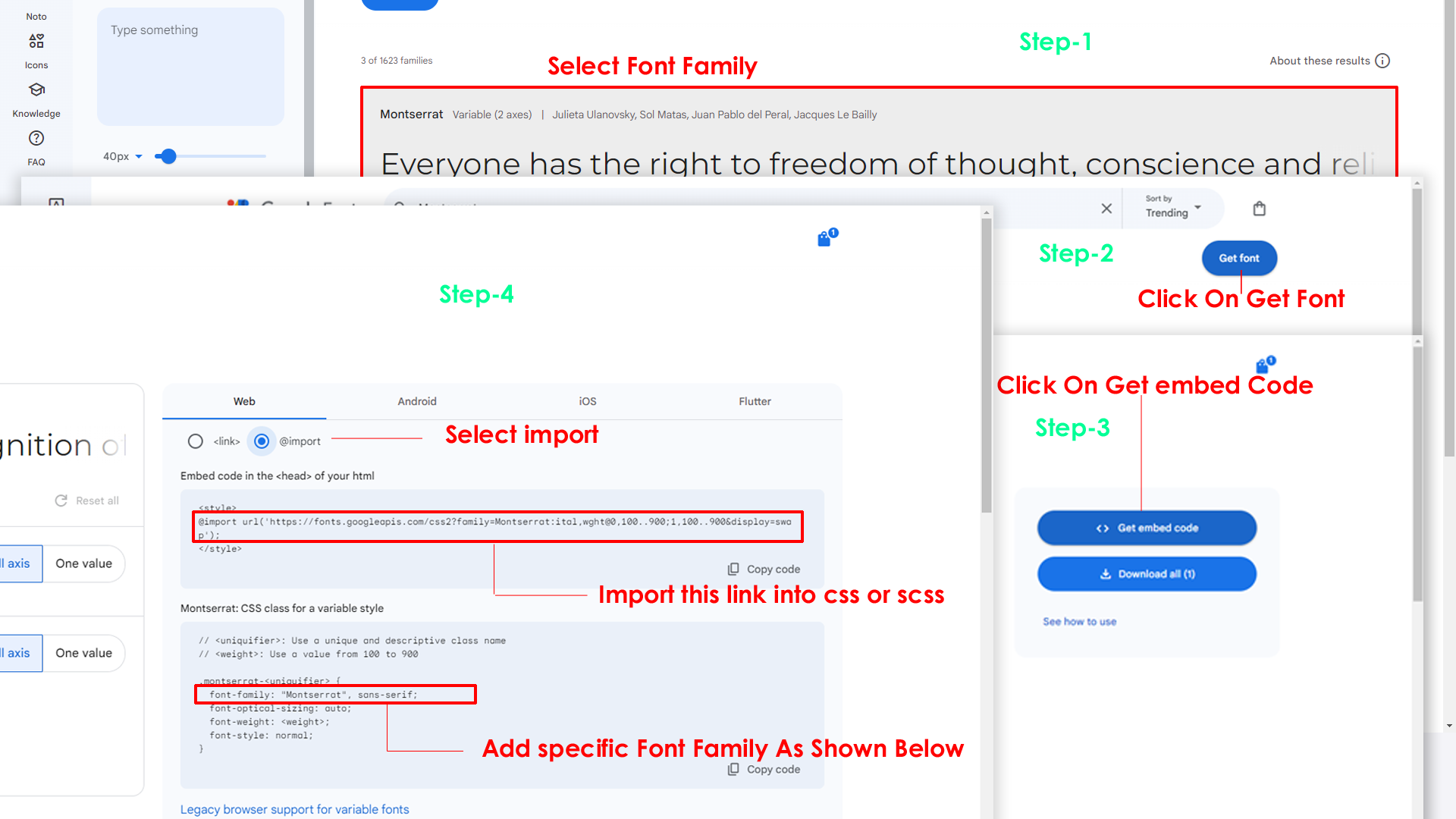
if you want to change another font-family Go to the site Google Fonts And Select One font Family and import in to styles.scss file
How to Select font Family
Step 2:
And paste Your Selected font-family in style.scss

Step 3:
And add the Your Selected font-family in _variables.scss(resources/js/assets/scss/_variables.scss)
code
--default-font-family: "Space Grotesk", sans-serif;By default menu icons are in the from remix icon if you want to change the icons please follow below steps
Step 1 :
To change Menu icons, open sidebar.jsx page
Path: resources\js\shared\data\sidebar\menusvg-icons.js
and go through app-sidebar section, in that section
you will find
icon tag, there you can replace previous icon
with your icon. Example as shown in below
js
 Before: (Iconscout Icons)

        export const Dashboardicon =

        export const MENUITEMS = [
        { id: 1, menutitle: "MAIN",
            Items: [
                { id: 2,icon: Dashboardicon, title: "Dashboards", type: "sub", active: false,  dirchange: false, selected: false }
            ]
        }]

    After: (Feather Icons)
        const Dashboardicon = Modify the SVG here according to your needs.

        export const MenuItems = [
        { id: 1, menutitle: "MAIN",
            Items: [
                { id: 2,icon: Dashboardicon, title: "Dashboards", type: "sub", active: false,  dirchange: false, selected: false }
            ]
        }]
Go To
"public/images/brand-logos"
folder and replace
your
logo with Previous Logos within in image size.
note: Please don't increase logo sizes. Replace your logo
within
given
image size. otherwise the logo will not fit in particular
place
it
disturbs the template design.
Step1:
To clear LocalStorage loading functions you need to
remove
retrieveFromLocalStorage() function in
custom-switcher.min.js
resources\stores\switcher.js
as
shown
below
javascript
retrieveFromLocalStorage()Step2:
To remove complete LocalStorage saving you need to
remove
all localstorage related calling functions like
retrieveFromLocalStorage in
switcher.js
resources\js\layouts\maindashboard.jsfile.Below
are
the some examples to find out.
vue
// Store
const switcher = switcherStore()

// Lifecycle hooks
onMounted(() => {
  switcher.retrieveFromLocalStorage()
});Step1:
Open header.jsx component
resources\js\components\header\header.vue
To remove switcher section as shown below.
<li class="header-element">

    <a href="javascript:void(0);" class="header-link switcher-icon" data-bs-toggle="offcanvas"
                data-bs-target="#switcher-canvas">
        <svg xmlns="http://www.w3.org/2000/svg" class="header-link-icon" viewBox="0 0 256 256">
        <rect width="256" height="256" fill="none" />
        <path
         d="M207.86,123.18l16.78-21a99.14,99.14,0,0,0-10.07-24.29l-26.7-3a81,81,0,0,0-6.81-6.81l-3-26.71a99.43,99.43,0,0,0-24.3-10l-21,16.77a81.5981.59,0,0,0-9.64,0l-21-16.78A99.14,99.14,0,0,0,77.91,41.43l-3,26.7a81,81,0,0,0-6.81,6.81l-26.71,3a99.43,99.43,0,0,0-10,24.3l16.77,21a8159,81.59,0,0,0,0,9.64l-16.78,21a99.14,99.14,0,0,0,10.07,24.29l26.7,3a81,81,0,0,0,6.81,6.81l3,26.71a99.43,99.43,0,0,0,24.3,10l21-16.77a8159,81.59,0,0,0,9.64,0l21,16.78a99.14,99.14,0,0,0,24.29-10.07l3-26.7a81,81,0,0,0,6.81-6.81l26.71-3a99.43,99.43,0,0,0,10-24.3l-16.77-21A8159,81.59,0,0,0,207.86,123.18ZM128,168a40,40,0,1,1,40-40A40,40,0,0,1,128,168Z"
         opacity="0.2" />
        <circle cx="128" cy="128" r="40" fill="none" stroke="currentColor" stroke-linecap="round"
                        stroke-linejoin="round" stroke-width="16" />
        <path
          d="M41.43,178.09A99.14,99.14,0,0,1,31.36,153.8l16.78-21a81.59,81.59,0,0,1,0-9.64l-16.77-21a99.43,99.43,0,0,1,10.05-24.3l26.71-3a81,81,0,01,6.81-6.81l3-26.7A99.14,99.14,0,0,1,102.2,31.36l21,16.78a81.59,81.59,0,0,1,9.64,0l21-16.77a99.43,99.43,0,0,1,24.3,10.05l3,26.71a81,81,00,1,6.81,6.81l26.7,3a99.14,99.14,0,0,1,10.07,24.29l-16.78,21a81.59,81.59,0,0,1,0,9.64l16.77,21a99.43,99.43,0,0,1-10,24.3l-26.71,3a81,81,00,1-6.81,6.81l-3,26.7a99.14,99.14,0,0,1-24.29,10.07l-21-16.78a81.59,81.59,0,0,1-9.64,0l-21,16.77a99.43,99.43,0,0,1-24.3-10l-3-26.71a81,810,0,1-6.81-6.81Z"
          fill="none" stroke="currentColor" stroke-linecap="round" stroke-linejoin="round"
          stroke-width="16" />
        </svg>
    </a>

</li>
Step2:
Remove the switcher component from the
main layout follow the path
Path: resources\js\layouts\maindashboard.vue
    import Switcher from "../components/switcher/switcher.vue";

    <Switcher />
Step3:
Now remove the switcher component and switcherData file
from the root folder, follow the path
Switcher component resources/js/components/switcher/switcher.vue
and
switcherdata file from resources/js/stores/switcher.js
Step1:
Open authlayout.vue component
resources\js\layouts\authlayout.vue
To remove switcher section as shown below.
import customswitcher from '../components/customswitcher/customswitcher.vue';

    <customswitcher />
Step2:
Now remove the customswitcher component from the root
folder, follow the path
resources\js\components\layouts-components\customswitcher\customswitcher.vue
and
Please follow the below steps to change Primary Color
Step 1 :
To change Primary Color you have to open _variables.scss file and replace what color you want as shown in below
Rootpath : _variables.scss (resources/css/scss/_variables.scss )

Please follow the below steps to change Dark body Color
Step 1 :
Make sure the theme is set completely to dark mode by adding the following attributes to the html tag data-theme-mode="dark" data-header-styles="dark" data-menu-styles="dark"
Step 2 :
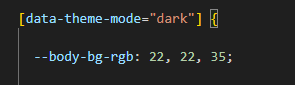
To change Dark body Color you have to open _variables.scss file and replace what color you want as shown in below
Rootpath : _variables.scss (resources/css/scss/_variables.scss )
Step 3 :
Also Change the following variable colors to the desired theme background accordingly in [data-theme-mode="dark"]
--light-rgb : --form-control-bg : --input-border : --gray-3 :Credit's
Icons Credit
| Icons | References |
|---|---|
| Bootstrap Icons | https://icons.getbootstrap.com/ |
| Boxicons | https://boxicons.com/ |
| Remix Icons | https://remixicon.com/ |
| Feather Icons | https://feathericons.com/ |
| Tabler Icons | https://tabler-icons.io/ |
| Line Awesome Icons | https://icons8.com/line-awesome |
| Phosphor Icons | https://phosphoricons.com/ |
Images Credit
| Images | References |
|---|---|
| Vecteezy | https://www.vecteezy.com/ |
| Iconscount | https://iconscout.com/ |
| Unsplash | https://unsplash.com/ |
| Png Tree | https://pngtree.com/ |
| flaticon | https://www.flaticon.com/authors/flat-icons |
| freepik | https://www.freepik.com |
Fonts Credit
| Font | References |
|---|---|
| Google Fonts | https://fonts.google.com/ |
Sidemenu Icons
| Icon | References |
|---|---|
| phosphor Icons | https://phosphoricons.com/ |
Switcher styles
(resources/views/app.blade.php)
html
<html lang="en" dir="ltr" data-nav-layout="vertical" data-theme-mode="light" data-header-styles="transparent" data-width="fullwidth" data-menu-styles="transparent" data-page-style="flat" data-toggled="close" data-vertical-style="doublemenu" data-toggled="double-menu-open">html
data-theme-mode="light" data-header-styles="light" data-menu-styles="light"html
data-theme-mode="dark" data-header-styles="dark" data-menu-styles="dark"html
dir="ltr"html
dir="rtl"html
data-nav-layout="vertical"html
data-nav-layout="horizontal" data-nav-style="menu-click"html
data-page-style="regular"html
data-page-style="classic"html
data-page-style="modern"html
data-page-style="flat"html
data-width="default"html
data-width="full-width"html
data-width="boxed"html
data-header-position="fixed"html
data-header-position="scrollable"html
data-vertical-style="closed"html
data-vertical-style="icontext"html
data-vertical-style="overlay"html
data-vertical-style="detached"html
data-vertical-style="doublemenu"html
loader="enable"html
loader="disable"html
data-menu-styles="light"html
data-menu-styles="dark"html
data-menu-styles="color"html
data-menu-styles="gradient"html
data-menu-styles="transparent"html
data-header-styles="light"html
data-header-styles="dark"html
data-header-styles="color"html
data-header-styles="gradient"html
data-header-styles="transparent"html
data-bg-img="bgimg1"html
data-bg-img="bgimg2"html
data-bg-img="bgimg3"html
data-bg-img="bgimg4"html
data-bg-img="bgimg5"Vue-Apexcharts :
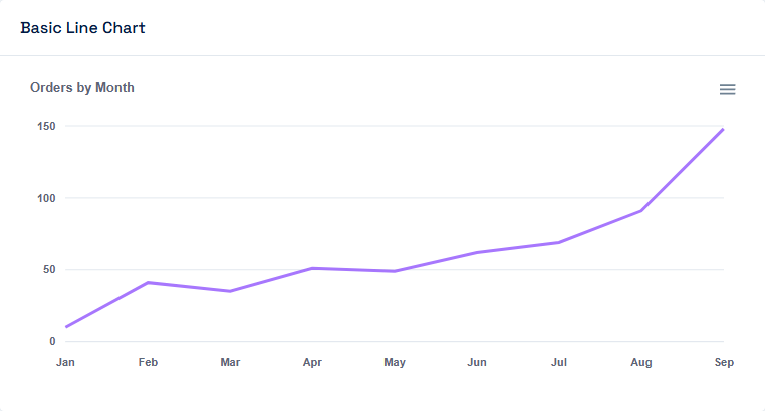
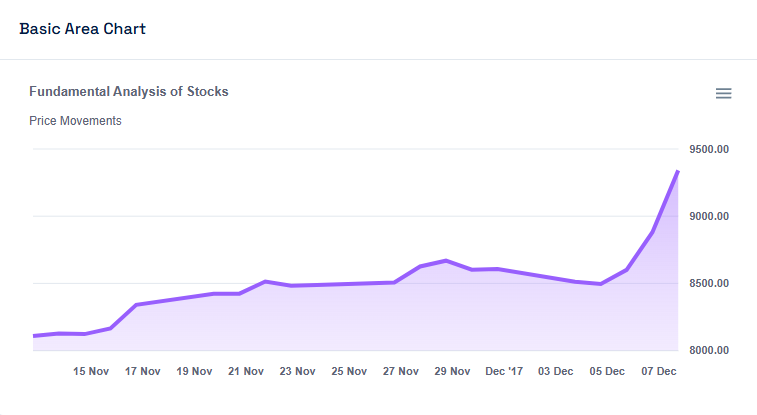
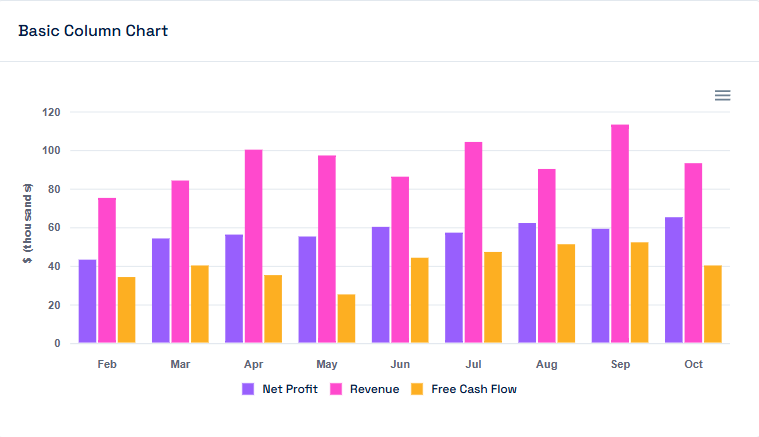
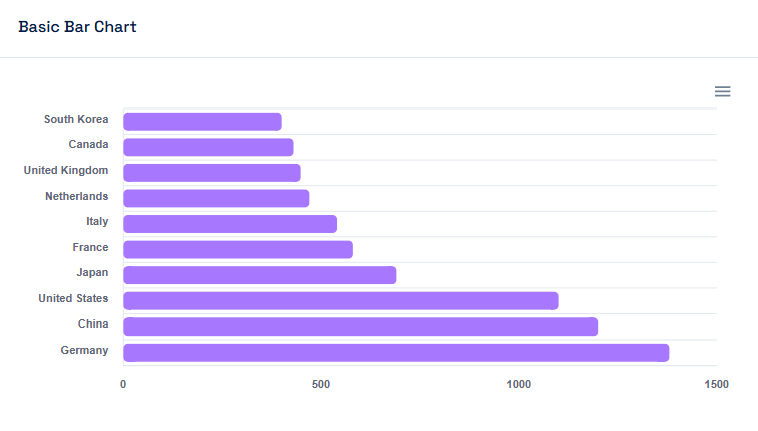
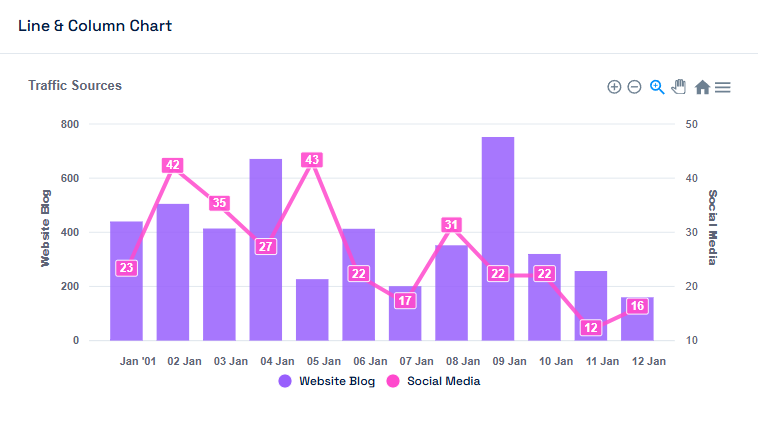
Vue-ApexCharts is a Vue wrapper for the powerful ApexCharts library, making it easy to create interactive and responsive charts in Vue. It supports a wide variety of chart types and offers extensive customization options with smooth Vue integration.
Vue
Vue
Vue
Plugin Link
https://www.npmjs.com/package/vue3-apexchartsReference Link
https://apexcharts.com/vue-chart-demos/Basic Table : :
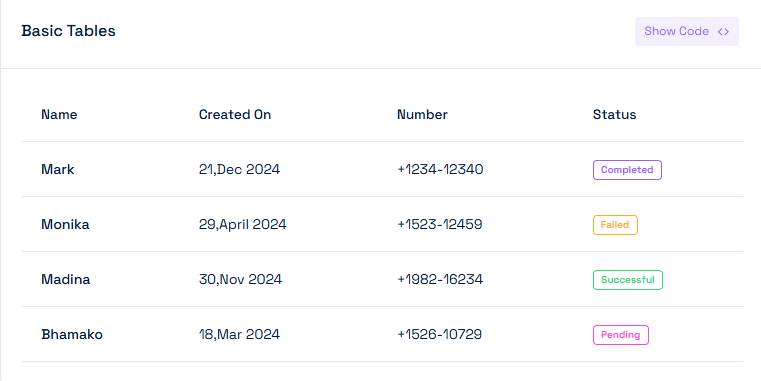
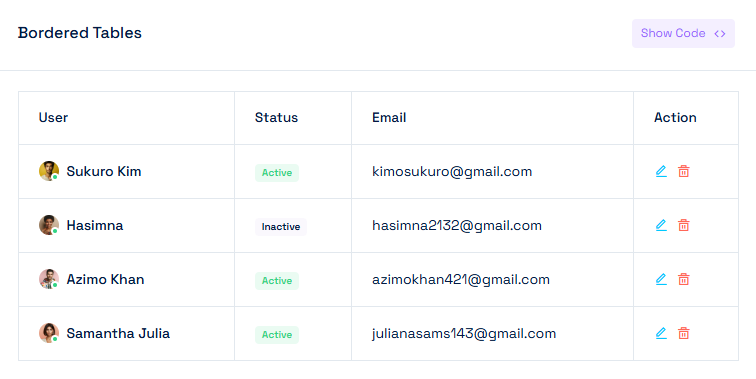
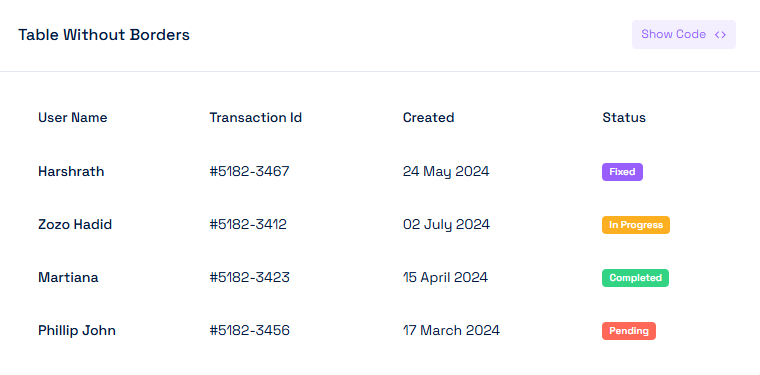
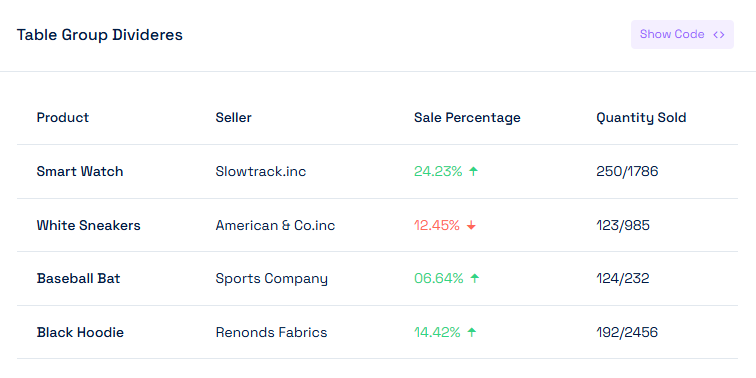
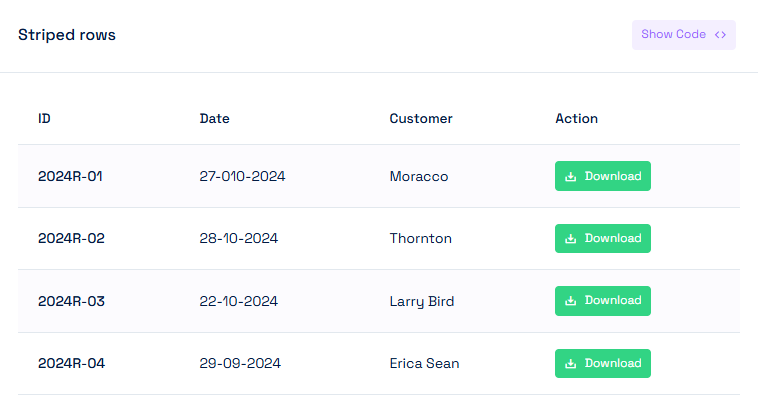
Vue Basic Tables are lightweight, customizable table components for Vue, designed to display structured data in a clean, responsive layout. They offer flexibility and simplicity for building data-driven interfaces.
Vue
data
Additional Plugins Included :
The following plugins have also been included, apart from the ones already listed in the above sections