



Introduction
Vyzor - MudBlazor Web App Server Premium Admin & Dashboard Template
Vyzor - MudBlazor Web App Server Premium Admin Template, With these template formats, it's very easy to create a presence and grab someone's attention around the web page Because the template is built using razor, C#, CSS3, MudBlazor framework and with Sass. So please before you start working with the template take a quick look on the documentation so that you can easily built your website. If You Love Our Template Design Please don't forgot to rate it. Thank you so much! 😊
Support and Updates:
When you purchase Vyzor, you gain access to free future updates to ensure your template remains up-to-date. Plus, our support team is always ready to assist with any questions.
Dependencies for Vyzor
- .NET 9.0.200 SDK
- Visual Studio Code or Visual Studio 2022
- C# for Visual Studio Code
- MudBlazor : 8.14.0
- Sass
- Gulp
- Node : 22.18.0
- NPM : 10.8.1
What Do You Get with the Vyzor:
Vyzor provides all necessary Razor, CSS, SCSS, JS files, along with detailed Documentation to help you easily customize and implement the template.
Vyzor Compatibility with Popular Browsers:
Vyzor is fully compatible with major browsers, ensuring a seamless user experience across Chrome, Firefox, Safari, Edge, and Opera.
Blazor Folder Structure
- Start by unzipping the project folder that you received from us.
- Go to the "Vyzor\ Components directory within the project folder, where you'll find over 8 + folders and 170 + .razor files.
- The MainLayout.razor file serves as the base for all razor pages.
- The CustomLayout.razor file is the base for authentication pages such as Create-password-cover.razor, Reset-password-cover.razor, Two-step-verification-basic.razor, Error401.razor, Error500.razor, and Under-maintenance.razor, etc.
- The LandingLayout.razor file is the base for the Landing.razor page.
Installation Process of .NET SDK
Step 1: Visit the official .NET SDK download page.
Step 2: Click on the Download .NET SDK button.
Step 3: Run the installer to install the SDK on your system.
How to Run the Blazor Core Development Server
Using Visual Studio Code
- Unzip the project folder you received.
- Open the project folder in Visual Studio Code.
- Open a terminal and navigate to your project directory:
cd /path-to-your-projectThen run the development server:
Command
dotnet watch runUsing Visual Studio
- Unzip the project folder.
- Open the
.slnfile. - Press
F5to run the application.
Purpose of a Starter Kit
Introduction to the MudBlazor Starter Kit:
The MudBlazor starterkit is a resource that helps developers kickstart their MudBlazor web development projects by providing a preconfigured and ready-to-use template. It aims to simplify the initial setup and provide a foundation for building MudBlazor Framework-based websites or applications.
Purpose of the MudBlazor Starter Kit:
The purpose of the MudBlazor starter kit is to save developers time and effort by offering a set of prebuilt files and configurations commonly used in MudBlazor projects. Instead of starting from scratch, developers can leverage the starter kit to quickly set up a project structure that adheres to best practices and industry standards.
Benefits of Using the MudBlazor Starter Kit:
The starter kit eliminates the need to set up the basic project structure manually. It provides a well-organized file and folder structure, including commonly used directories for separating code, templates, assets, and configuration files. This allows developers to focus more on implementing business logic rather than spending time on initial setup.
Starterkit Overview
You can use the Starterkit if you are creating a new project. It will be time-consuming to use the full admin version for a new project as Vyzor have more than 175 pages.
We have provided all the pre-build layouts like Sidemenu, Header, footer and blank pages etc in the Starterkit.
For further information or support regarding the template, please contact us using the provided link: https://support.spruko.com/
- Take a quick look at the folder structure of the "Starterkit."
- Integration of your customized razor pages becomes easy when using the "Starterkit."
- The "Starterkit" provides all the layout components, related assets, and plugins.
- To explore the contents of the "Starterkit," unzip the project folder received after purchase. Navigate to the following paths:
- Example: C:/projectname/Components/Layout- This folder contains files such as MainLayout.razor,NavMenu.razor, MainHeader.razor, Footer.razor, Modal.razor and Switcher.razor files.
- Example: C:/projectname/Pages/- This folder contains files such as Home.razor, files and etc..,.
Vyzor comes with power of Gulp
Gulp is a popular JavaScript task runner that automates common development tasks, such as compiling Sass to CSS, minifying JavaScript and CSS files, optimizing images, and more. Gulp allows developers to define tasks that process files in a project, and then run those tasks automatically when files are changed or when specific commands are issued.for more information about gulp Check here.
Prerequisites:
To install and set up all the prerequisites, follow these steps:
Ensure that Node.js is installed and running on your computer. If Node.js is already installed, you can skip this step. Otherwise, install it on your computer.
If you want to install and use the latest version of Node.js, you can find the necessary instructions on the official website.
To set up gulp, you need to install it globally on your system. Run one of the following commands in your terminal:
code
npm install -g gulpcode
npm install --save-dev gulpInstallation
Please follow below steps to install and setup all pre requisites:
Make sure to have all above pre requisites installed & running in your computer
Open your terminal, go to your folder and enter below command. This would install all required dependencies in node_modules folder.
code
npm installBuild Production File
After completing the above steps, run the following command from the project root (Vyzor/) in your terminal or command prompt:
code
gulpNote:-Ensure all required node_modules are installed to run the gulp tasks successfully.
The following command performs several tasks to streamline your development workflow below are some of the task it performs :
- Generates the
libs/ and CSS/ foldersdirectory
FAQ'S
Step 1:
Go To style.scss (wwwroot/assets/scss/styles.scss )
if you want to change another font-family Go to the site Google Fonts And Select One font Family and import in to styles.scss file
How to Select font Family
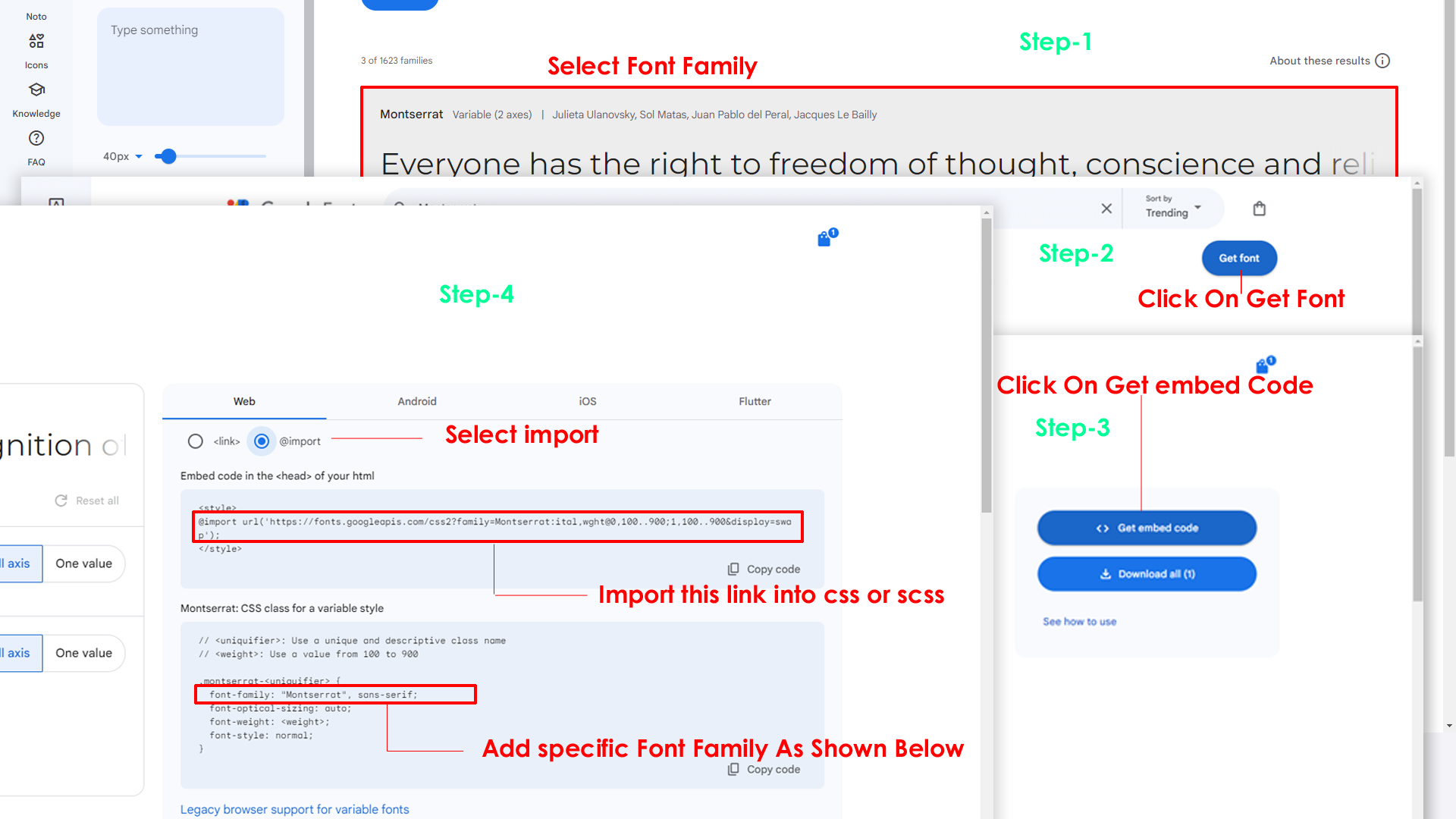
Step 2:
And paste Your Selected font-family in style.scss

Step 3:
And add the Your Selected font-family in _variables.scss(wwwroot/assets/scss/_variables.scss)
code
--default-font-family: "Space Grotesk", sans-serif;Note : After changing the styles, you must run the gulp command "gulp" . For more gulp commands, see the gulp page click here.
By default menu icons are phosphoricons if you want to change icons please follow below steps
Step :
To change Menu icons, open MenuData.Service.cs file Path:Services/MenuDataService.cs and go through
MainMenuItems you can find the svg property,
in the place of phosphoricons of you can replace it with the required icon, Example
as shown in below
To Add the New link element, open MenuData.Service.cs page Services\MenuData.Service.cs and go through the object where you are want to place the new menu element.
To Add the New menu element, open MenuData.Service.cs page Services\MenuData.Service.cs and go through the object where you are want to place the new menu element.
To Remove the link/sub element, open MenuData.Service.cs page Services\MenuData.Service.cs and go through the object which you are intended to remove.
Go To "wwwroot/assets/images/brand-logos" folder and replace
your
logo with Previous Logos within in image size.
note: Please don't increase logo sizes. Replace your logo within
given
image size. otherwise the logo will not fit in particular place it
disturbs the template design.
Note : After changing the styles, you must run the gulp command "gulp" . For more gulp commands, see the gulp page click here.
Step1:
Go to root path: Components/Layout/MainHeader.razor open "MainHeader.razor" file and remove below mentioned switcher icon code.
html
@* Start::header-element *@
<div class="header-element">
    <!-- Start::header-link|switcher-icon -->
    <MudLink Href="javascript:void(0);" Class="header-link switcher-icon" data-bs-toggle="offcanvas" data-bs-target="#switcher-canvas"  OnClick="@(() => OpenDrawer(Anchor.End))">
        <svg xmlns="http://www.w3.org/2000/svg" Class="header-link-icon" viewBox="0 0 256 256"><rect width="256" height="256" fill="none"/><path d="M207.86,123.18l16.78-21a99.14,99.14,0,0,0-10.07-24.29l-26.7-3a81,81,0,0,0-6.81-6.81l-3-26.71a99.43,99.43,0,0,0-24.3-10l-21,16.77a81.59,81.59,0,0,0-9.64,0l-21-16.78A99.14,99.14,0,0,0,77.91,41.43l-3,26.7a81,81,0,0,0-6.81,6.81l-26.71,3a99.43,99.43,0,0,0-10,24.3l16.77,21a81.59,81.59,0,0,0,0,9.64l-16.78,21a99.14,99.14,0,0,0,10.07,24.29l26.7,3a81,81,0,0,0,6.81,6.81l3,26.71a99.43,99.43,0,0,0,24.3,10l21-16.77a81.59,81.59,0,0,0,9.64,0l21,16.78a99.14,99.14,0,0,0,24.29-10.07l3-26.7a81,81,0,0,0,6.81-6.81l26.71-3a99.43,99.43,0,0,0,10-24.3l-16.77-21A81.59,81.59,0,0,0,207.86,123.18ZM128,168a40,40,0,1,1,40-40A40,40,0,0,1,128,168Z" opacity="0.2"/><circle cx="128" cy="128" r="40" fill="none" stroke="currentColor" stroke-linecap="round" stroke-linejoin="round" stroke-width="16"/><path d="M41.43,178.09A99.14,99.14,0,0,1,31.36,153.8l16.78-21a81.59,81.59,0,0,1,0-9.64l-16.77-21a99.43,99.43,0,0,1,10.05-24.3l26.71-3a81,81,0,0,1,6.81-6.81l3-26.7A99.14,99.14,0,0,1,102.2,31.36l21,16.78a81.59,81.59,0,0,1,9.64,0l21-16.77a99.43,99.43,0,0,1,24.3,10.05l3,26.71a81,81,0,0,1,6.81,6.81l26.7,3a99.14,99.14,0,0,1,10.07,24.29l-16.78,21a81.59,81.59,0,0,1,0,9.64l16.77,21a99.43,99.43,0,0,1-10,24.3l-26.71,3a81,81,0,0,1-6.81,6.81l-3,26.7a99.14,99.14,0,0,1-24.29,10.07l-21-16.78a81.59,81.59,0,0,1-9.64,0l-21,16.77a99.43,99.43,0,0,1-24.3-10l-3-26.71a81,81,0,0,1-6.81-6.81Z" fill="none" stroke="currentColor" stroke-linecap="round" stroke-linejoin="round" stroke-width="16"/></svg>
    </MudLink>
    <!-- End::header-link|switcher-icon -->
</div>
@* End::header-element *@
Step2:
Go to root path: Components/Layout/MainHeader.razor open "MainHeader.razor" file and remove below mentioned switcher code.
html
@*start main switcher*@
<MudDrawer> @bind-Open="@_open" Width="@_width" Height="@_height" Anchor="@_anchor" Elevation="1" Variant="@DrawerVariant.Temporary" class="switcher-canvas">
    ------------
    ------------
    --------
</MudDrawer>
@*end main switcher*@
Step3:
html
Need to remove complete StateService path : Services/StateServicefile.
NOTE: "If the switcher is not used in the template, you can remove the StateService.cs file. If , some pages use the switcher, do not remove StateService.cs, because removing it will affect all layouts and the switcher functionality will stop working. so, only remove icon and code"
Step1:
Go to root paths: Components/Layout/LandingSidebar.razor and Components/Layout/LandingHeader.razor open "LandingSidebar.razor" and "LandingHeader.razor" in that file, remove the Switcher Button code as shown in below.
html
In LandingSidebar.razor

<MudIconButton Icon="ri-settings-3-line fs-16 align-center" Variant="Variant.Filled" Class="switcher-icon" Color="Color.Success" OnClick="@(() => OpenDrawer(Anchor.End))"/>

In LandingHeader.razor

<MudIconButton Icon="ti ti-settings fs-16 align-center" Class="btn-primary-light  d-md-flex d-none switcher-icon" OnClick="@(() => OpenDrawer(Anchor.End))"/>
Step2:
Go to root paths: Components/Layout/LandingSidebar.razor and Components/Layout/LandingHeader.razor open "LandingSidebar.razor" and "LandingHeader.razor" in that file, remove the Switcher code as shown in below.
html
<MudDrawer @bind-Open="@_open" Width="@_width" Height="@_height" Anchor="@_anchor" Elevation="1" Variant="@DrawerVariant.Temporary" class="switcher-canvas">
    ------------
    ------------
    --------
</MudDrawer>
Please follow the below steps to change Primary Color
Step 1 :
To change Primary Color you have to open _variables.scss file and replace what color you want as shown in below
Rootpath : _variables.scss (wwwroot/assets/scss/_variables.scss )

Note : After changing the styles, you must run the gulp command "gulp" . For more gulp commands, see the gulp page click here.
Please follow the below steps to change Dark body Color
Step 1 :
Make sure the theme is set completely to dark mode by adding the following attributes to the html tag data-theme-mode="dark" data-header-styles="dark" data-menu-styles="dark"
Step 2 :
To change Dark body Color you have to open _variables.scss file and replace what color you want as shown in below
Rootpath : _variables.scss (wwwroot/assets/scss/_variables.scss )
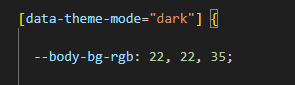
Step 3 :
Also Change the following variable colors to the desired theme background accordingly in [data-theme-mode="dark"]
--light-rgb : --form-control-bg : --input-border : --gray-3 :Note : After changing the styles, you must run the gulp command "gulp" . For more gulp commands, see the gulp page click here.
Credit's
Icons Credit
| Icons | References |
|---|---|
| Bootstrap Icons | https://icons.getbootstrap.com/ |
| Boxicons | https://boxicons.com/ |
| Remix Icons | https://remixicon.com/ |
| Feather Icons | https://feathericons.com/ |
| Tabler Icons | https://tabler-icons.io/ |
| Line Awesome Icons | https://icons8.com/line-awesome |
Images Credit
| Images | References |
|---|---|
| Vecteezy | https://www.vecteezy.com/ |
| Iconscount | https://iconscout.com/ |
| Unsplash | https://unsplash.com/ |
| Png Tree | https://pngtree.com/ |
| flaticon | https://www.flaticon.com/authors/flat-icons |
| freepik | https://www.freepik.com |
Fonts Credit
| Font | References |
|---|---|
| Google Fonts | https://fonts.google.com/ |
Sidemenu Icons
| Icon | References |
|---|---|
| phosphor Icons | https://phosphoricons.com/ |
Switcher styles
StateService.cs
    public string ColorTheme { get; set; } = "light";                   // light, dark
    public string Direction { get; set; } = "ltr";                      // ltr, rtl
    public string NavigationStyles { get; set; } = "vertical";          // vertical, horizontal
    public string MenuStyles { get; set; } = "";                        // menu-click, menu-hover, icon-click, icon-hover
    public string LayoutStyles { get; set; } = "doublemenu";          // doublemenu, detached, icon-overlay, icontext-menu, closed-menu, default-menu
    public string PageStyles { get; set; } = "flat";                 // regular, classic, modern
    public string WidthStyles { get; set; } = "fullwidth";              // default, fullwidth, boxed
    public string MenuPosition { get; set; } = "fixed";                 // fixed, scrollable
    public string HeaderPosition { get; set; } = "fixed";               // fixed, scrollable
    public string MenuColor { get; set; } = "transparent";                     // light, dark, color, gradient, transparent
    public string HeaderColor { get; set; } = "transparent";                  // light, dark, color, gradient, transparent
    public string ThemePrimary { get; set; } = "";                      // '106, 91, 204', '100, 149, 237', '0, 123, 167', '10, 180, 255', '46, 81, 145'
    public string ThemeBackground { get; set; } = "";                   //make sure to add rgb valies like example :- '49, 63, 141' and also same for ThemeBackground1
    public string ThemeBackground1 { get; set; } = "";
    public string BackgroundImage { get; set; } = "";                   // bgimg1, bgimg2, bgimg3, bgimg4, bgimg5
Nudget Package Plugins Included :
NPM Plugins & Reference Links
All plugins runs through npm.
If you want new plugins : Install new plugin from npm then run
npm run vyzor command.