



Introduction
Yzen - Blazor Web App Server Bootstrap5 Premium Admin & Dashboard Template
Yzen - Blazor Web App Server Premium Bootstrap5 Admin Template, With these template formats, it's very easy to create a presence and grab someone's attention around the web page Because the template is built using razor, C#, CSS3, Bootstrap 5 and with Sass. So please before you start working with the template take a quick look on the documentation so that you can easily built your website. If You Love Our Template Design Please don't forgot to rate it. Thank you so much! 😊
Support and Updates:
When you purchase Yzen, you gain access to free future updates to ensure your template remains up-to-date. Plus, our support team is always ready to assist with any questions.
Dependencies for Yzen
- .NET 10.0.102 SDK
- Visual Studio Code or Visual Studio 2022
- C# for Visual Studio Code
- Bootstrap v5.3.8
- Sass
- Node : 22.13.0
- NPM : 10.9.2
What Do You Get with the Yzen:
Yzen provides all necessary Razor, CSS, SCSS, JS files, along with detailed Documentation to help you easily customize and implement the template.
Yzen Compatibility with Popular Browsers:
Yzen is fully compatible with major browsers, ensuring a seamless user experience across Chrome, Firefox, Safari, Edge, and Opera.
Core Folder Structure
Installation Process of .NET SDK
Step 1: Visit the official .NET SDK download page.
Step 2: Click on the Download .NET SDK button.
Step 3: Run the installer to install the SDK on your system.
How to Run the Blazor Core Development Server
Using Visual Studio Code
- Unzip the project folder you received.
- Open the project folder in Visual Studio Code.
- Open a terminal and navigate to your project directory:
cd /path-to-your-projectThen run the development server:
Commands
dotnet builddotnet watch run
Using Visual Studio
- Unzip the project folder.
- Open the
.slnfile. - Press
F5to run the application.
Purpose of a Starter Kit
Introduction
The Blazor Core Starter Kit helps developers quickly start a project with a clean, ready-to-use structure. It includes layouts and components commonly used in modern web apps.
Benefits
- Saves setup time with a pre-built project structure.
- Includes components like Sidebar, Header, Footer, etc.
- Helps organize Razor components, templates, and assets.
- Easier integration of your custom Razor pages.
Important Files
Components/Layout/CustomLayout.razor– Layout for auth and error pages.Components/App.razor– Root component.Components/Layout/LandingLayout.razor– Layout for the landing page.Components/Layout/NavMenu.razor,MainHeader.razor,Footer.razor, etc. – UI layout components.
For more support, visit: https://support.spruko.com/
SCSS Compilation with SassCompiler
Yzen uses AspNetCore.SassCompiler to compile SCSS files into CSS as part of the ASP.NET Core application lifecycle. This ensures styles are always generated automatically and stay in sync with your SCSS source files.
Installation
Install the AspNetCore.SassCompiler NuGet package to enable SCSS compilation. You can install it using any of the following methods:
-
Package Manager Console:
Install-Package AspNetCore.SassCompiler -
dotnet CLI:
dotnet add package AspNetCore.SassCompiler - PackageReference:
<PackageReference Include="AspNetCore.SassCompiler" Version="1.97.1" />How it Works
SCSS files located in wwwroot/assets/scss are compiled into CSS
and written to wwwroot/assets/css.
Configuration
The Sass compiler is configured using sasscompiler.json:
                            {
                            "Source": "wwwroot/assets/scss",
                            "Target": "wwwroot/assets/css",
                            "Arguments": "--no-source-map --error-css --style=expanded"
                            }
Live CSS Changes (Development Mode)
To enable live SCSS-to-CSS recompilation during development,
the Sass compiler is registered in the application startup Program.cs:
builder.Services.AddSassCompiler();
When enabled, any changes made to SCSS files are automatically recompiled at runtime, allowing CSS updates to reflect immediately without restarting the application.
Key Benefits
- Instant SCSS-to-CSS recompilation during development
- No manual build or watch commands required
- Fully integrated with ASP.NET Core
- Works seamlessly with MSBuild and PostCSS pipeline
Note:
Initial CSS files are generated by running dotnet build,
Run dotnet build once to generate CSS files if they do not exist in wwwroot/assets.
MSBuild-Based Asset Pipeline
Yzen uses MSBuild targets to manage frontend assets in a structured and automated way. All tasks are executed as part of the standard ASP.NET Core build lifecycle.
This approach avoids introducing a separate JavaScript build system (such as esbuild or Gulp) and keeps asset processing fully aligned with the .NET build process.
Pipeline Responsibilities
- Ensures Node.js dependencies (node_modules) are installed
- Resolves and copies libs from
node_modules - Processes CSS using PostCSS
Why MSBuild?
MSBuild is used as the single orchestration layer for frontend assets to ensure consistency across development, CI/CD, and production builds.
- Runs automatically during
dotnet build - No separate frontend build commands required
- Works consistently across local and server environments
- Avoids duplicate or out-of-sync build pipelines
Tools like esbuild or Gulp are intentionally avoided to reduce complexity and prevent parallel build workflows.
Automatic npm Installation
The build pipeline copies libs from node_modules to
wwwroot/assets/libs during dotnet build.
If node_modules is missing, the build would fail with an error.
To prevent this, an MSBuild target automatically runs npm install
before the build when node_modules is not present.
<Target Name="CheckNpm" BeforeTargets="Build">
  <Exec Command="npm install"
        Condition="!Exists('node_modules')" />
</Target>
This ensures all required npm dependencies are available and avoids build errors in fresh clones or CI environments.
Npm Package libs Management
npm packages are managed through package.json.
You can install a package using npm install package-name,
ensuring consistent dependency versions across all environments.
When dotnet build is executed, MSBuild copies the required package
libs from node_modules to wwwroot/assets/libs,
making them available for runtime use.
When a new npm package is installed, add its package name to the MSBuild
Packages list in yzen.csproj
<Packages Include="bootstrap; swiper; chart.js; select2; new-package-name;" />
The build pipeline handles the rest automatically.
<Target Name="CopyVendorAssets" AfterTargets="Build">
  <Message Importance="high"
        Text="Auto-resolving and copying vendor assets..." />

  <Copy SourceFiles="@(AllFiles)"
        DestinationFolder="wwwroot\assets\libs\%(Folder)\%(RecursiveDir)"
        SkipUnchangedFiles="true" />
</Target>
The pipeline intelligently detects whether a package exposes a dist
directory and copies optimized files when available.
If no dist folder exists, the package contents are copied instead.
PostCSS Processing
After SCSS to CSS compilation by SassCompiler, CSS files are post-processed using PostCSS. PostCSS is used as a lightweight transformation step rather than a full bundling solution.
The PostCSS configuration is defined in postcss.config.js:
    module.exports = {
        plugins: [
            require('postcss-import'),
            require('autoprefixer'),
        ]
    };
-
postcss-import – enables modular CSS with
@importand bundles it into one file. - Autoprefixer – automatically adds required CSS prefixes to ensure cross-browser compatibility.
<Target Name="MinifyAndPrefix" AfterTargets="Build">
  <Message Importance="high"
        Text="Post-processing CSS: Autoprefixing and Minifying..." />

  <Exec Command="npx postcss wwwroot/assets/css/icons.css
        -o wwwroot/assets/css/icons.css" />

  <Exec Command="npx postcss wwwroot/assets/css/styles.css
        -o wwwroot/assets/css/styles.css" />

  <Exec Command="npx postcss wwwroot/assets/css/icons.css
        -o wwwroot/assets/css/icons.min.css --use cssnano" />

  <Exec Command="npx postcss wwwroot/assets/css/styles.css
        -o wwwroot/assets/css/styles.min.css --use cssnano" />
</Target>
- cssnano – used only for generating minified production CSS files
When you run dotnet build command, the following actions take place:
- npm dependencies are installed automatically (if missing)
- npm package libs are copied to
wwwroot/assets/libsfrom node_modules folder - CSS is autoprefixed and minified
All frontend asset tasks are handled automatically by MSBuild, keeping the asset pipeline simple, predictable, and production-ready.
Overall Project Workflow
The project uses SassCompiler to compile SCSS files into CSS, and MSBuild targets to copy npm package libraries from node_modules into wwwroot/assets/libs.
PostCSS is used for autoprefixing and minification of the generated CSS.
Recommended Development Flow
Always run dotnet build first, then start the application using dotnet watch run.
Although dotnet watch run performs a build before starting, it may run an incremental build and some MSBuild targets (such as copying libs) may not execute fully.
Therefore, if wwwroot/assets/libs is missing, the project may start successfully, but some components can fail with missing library errors because the required libs are not copied from node_modules.
During development, SassCompiler watches SCSS changes automatically, so you do not need to manually recompile or restart the server
because we have registered the Sass Compiler in the application startup Program.cs:
builder.Services.AddSassCompiler();
When enabled, any changes made to SCSS files are automatically recompiled at runtime, allowing CSS updates to reflect immediately without restarting the application.
Adding a New npm Package
When adding a new npm package, install it using npm install package-name, stop the server, and add the package name to the MSBuild
Packages list in the .csproj file. Then run dotnet build again to copy the package libs into wwwroot/assets/libs.
Important: If the package name is not added to the Packages list, its library files will not be copied to wwwroot/assets/libs.
FAQ'S
Step 1:
Go To style.scss (wwwroot/assets/scss/styles.scss )
if you want to change another font-family Go to the site Google Fonts And Select One font Family and import in to styles.scss file
How to Select font Family
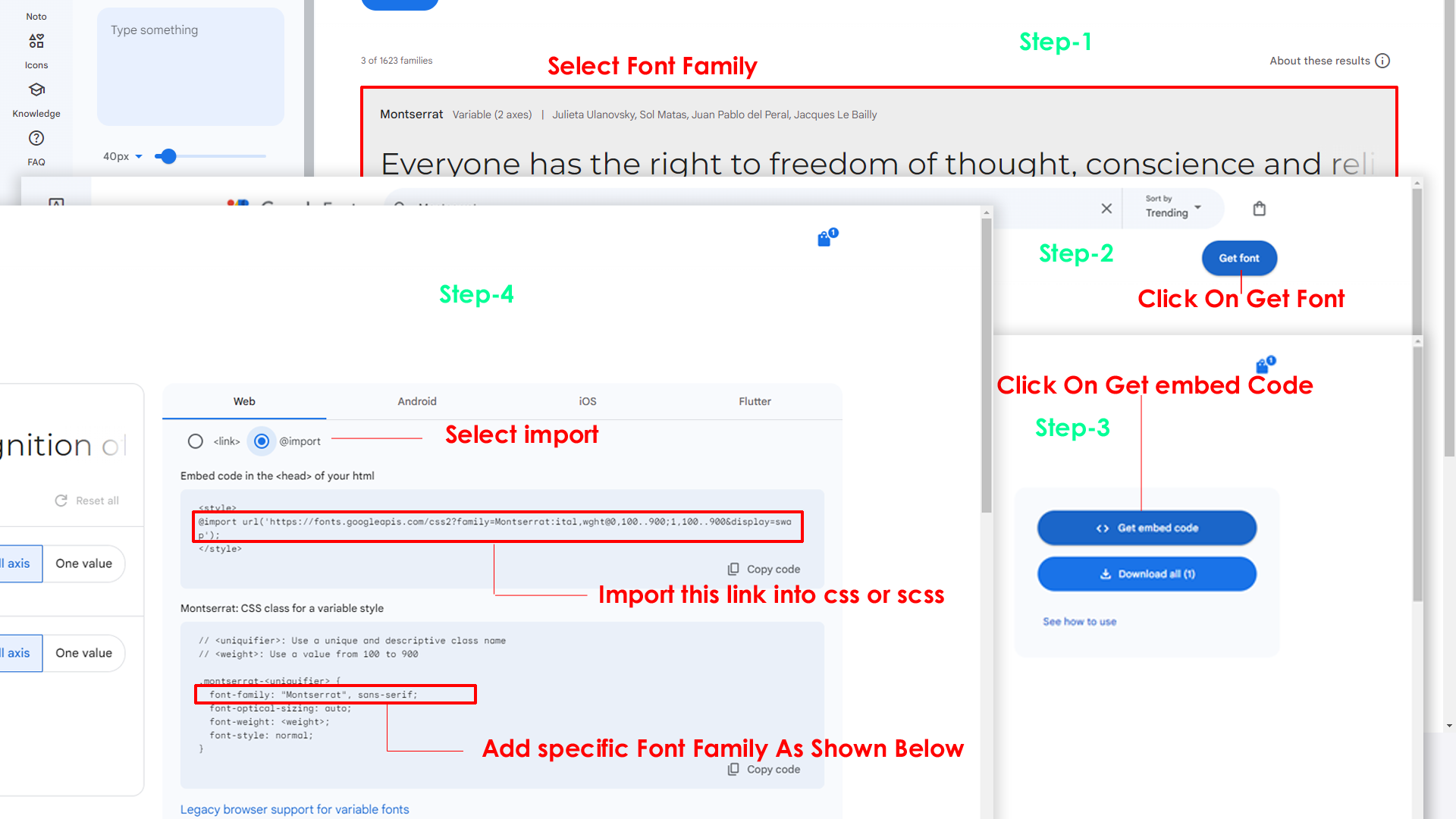
Step 2:
And paste Your Selected font-family in style.scss

Step 3:
And add the Your Selected font-family in _variables.scss(static/assets/scss/_variables.scss)
code
--default-font-family: "Space Grotesk", sans-serif;Note : After changing the styles, you must run "dotnet build" command
By default menu icons are phosphoricons if you want to change icons please follow below steps
Step :
To change Menu icons, open MenuData.Service.cs file Path:Services/MenuDataService.cs and go through
MainMenuItems you can find the svg property,
in the place of phosphoricons of you can replace it with the required icon, Example
as shown in below
To Add the New link element, open MenuData.Service.cs page Services\MenuData.Service.cs and go through the object where you are want to place the new menu element.
To Add the New menu element, open MenuData.Service.cs page Services\MenuData.Service.cs and go through the object where you are want to place the new menu element.
To Remove the link/sub element, open MenuData.Service.cs page Services\MenuData.Service.cs and go through the object which you are intended to remove.
Go To "wwwroot/assets/images/brand-logos" folder and replace
your
logo with Previous Logos within in image size.
note: Please don't increase logo sizes. Replace your logo within
given
image size. otherwise the logo will not fit in particular place it
disturbs the template design.
Note : After changing the styles, you must run the esbuild command "npm run yzen"
To remove switcher Go to root path: Components/Layout/ open "MainHeader.razor" in that file, then remove below mentioned code.
To remove switcher Go to root path: Components/Layout/ open "LandingHeader.razor" in that file, then remove below mentioned code.
Please follow the below steps to change Primary Color
Step 1 :
To change Primary Color you have to open _variables.scss file and replace what color you want as shown in below
Rootpath : _variables.scss (wwwroot/assets/scss/_variables.scss )

Note : After changing the styles, you must run "dotnet build" command
Please follow the below steps to change Dark body Color
Step 1 :
Make sure the theme is set completely to dark mode by adding the following attributes to the html tag data-theme-mode="dark" data-header-styles="dark" data-menu-styles="dark"
Step 2 :
To change Dark body Color you have to open _variables.scss file and replace what color you want as shown in below
Rootpath : _variables.scss (wwwroot/assets/scss/_variables.scss )
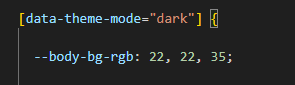
Step 3 :
Also Change the following variable colors to the desired theme background accordingly in [data-theme-mode="dark"]
--light-rgb : --form-control-bg : --input-border : --gray-3 :Note : After changing the styles, you must run "dotnet build" command
Credit's
Icons Credit
| Icons | References |
|---|---|
| Bootstrap Icons | https://icons.getbootstrap.com/ |
| Boxicons | https://boxicons.com/ |
| Remix Icons | https://remixicon.com/ |
| Feather Icons | https://feathericons.com/ |
| Tabler Icons | https://tabler-icons.io/ |
| Line Awesome Icons | https://icons8.com/line-awesome |
Images Credit
| Images | References |
|---|---|
| Vecteezy | https://www.vecteezy.com/ |
| Iconscount | https://iconscout.com/ |
| Unsplash | https://unsplash.com/ |
| Png Tree | https://pngtree.com/ |
| flaticon | https://www.flaticon.com/authors/flat-icons |
| freepik | https://www.freepik.com |
Fonts Credit
| Font | References |
|---|---|
| Google Fonts | https://fonts.google.com/ |
Sidemenu Icons
| Icon | References |
|---|---|
| phosphor Icons | https://phosphoricons.com/ |
Switcher styles
StateService.cs
    public string ColorTheme { get; set; } = "light";                   // light, dark
    public string Direction { get; set; } = "ltr";                      // ltr, rtl
    public string NavigationStyles { get; set; } = "vertical";          // vertical, horizontal
    public string MenuStyles { get; set; } = "";                        // menu-click, menu-hover, icon-click, icon-hover
    public string LayoutStyles { get; set; } = "default-menu";          // doublemenu, detached, icon-overlay, icontext-menu, closed-menu, default-menu
    public string PageStyles { get; set; } = "regular";                 // regular, classic, modern
    public string WidthStyles { get; set; } = "fullwidth";              // default, fullwidth, boxed
    public string MenuPosition { get; set; } = "fixed";                 // fixed, scrollable
    public string HeaderPosition { get; set; } = "fixed";               // fixed, scrollable
    public string MenuColor { get; set; } = "dark";                     // light, dark, color, gradient, transparent
    public string HeaderColor { get; set; } = "dark";                  // light, dark, color, gradient, transparent
    public string ThemePrimary { get; set; } = "";                      // '106, 91, 204', '100, 149, 237', '0, 123, 167', '10, 180, 255', '46, 81, 145'
    public string ThemeBackground { get; set; } = "";                   //make sure to add rgb valies like example :- '49, 63, 141' and also same for ThemeBackground1
    public string ThemeBackground1 { get; set; } = "";
    public string BackgroundImage { get; set; } = "";                   // bgimg1, bgimg2, bgimg3, bgimg4, bgimg5
Nuget Packages Included :
NPM Plugins & Reference Links
These plugins runs through npm.
If you want new plugins : Install new plugin from npm then add its package name to the MSBuildPackages list in yzen.csproj
<Packages Include="bootstrap; swiper; chart.js; select2; new-package-name;" />Then execute dotnet build command to copy its libs from node_modules to wwwroot/assets/libs, making them available for runtime use.